Edit the pages of a flipbook before exporting it
Published on 2 min read
An imported document rarely arrives the way you want to publish it. A title page is one too many, two chapters are in the wrong order, the last page with an address is missing. The Pages and cover section sorts this out before the export, without going back to the original program.
Moving and removing pages
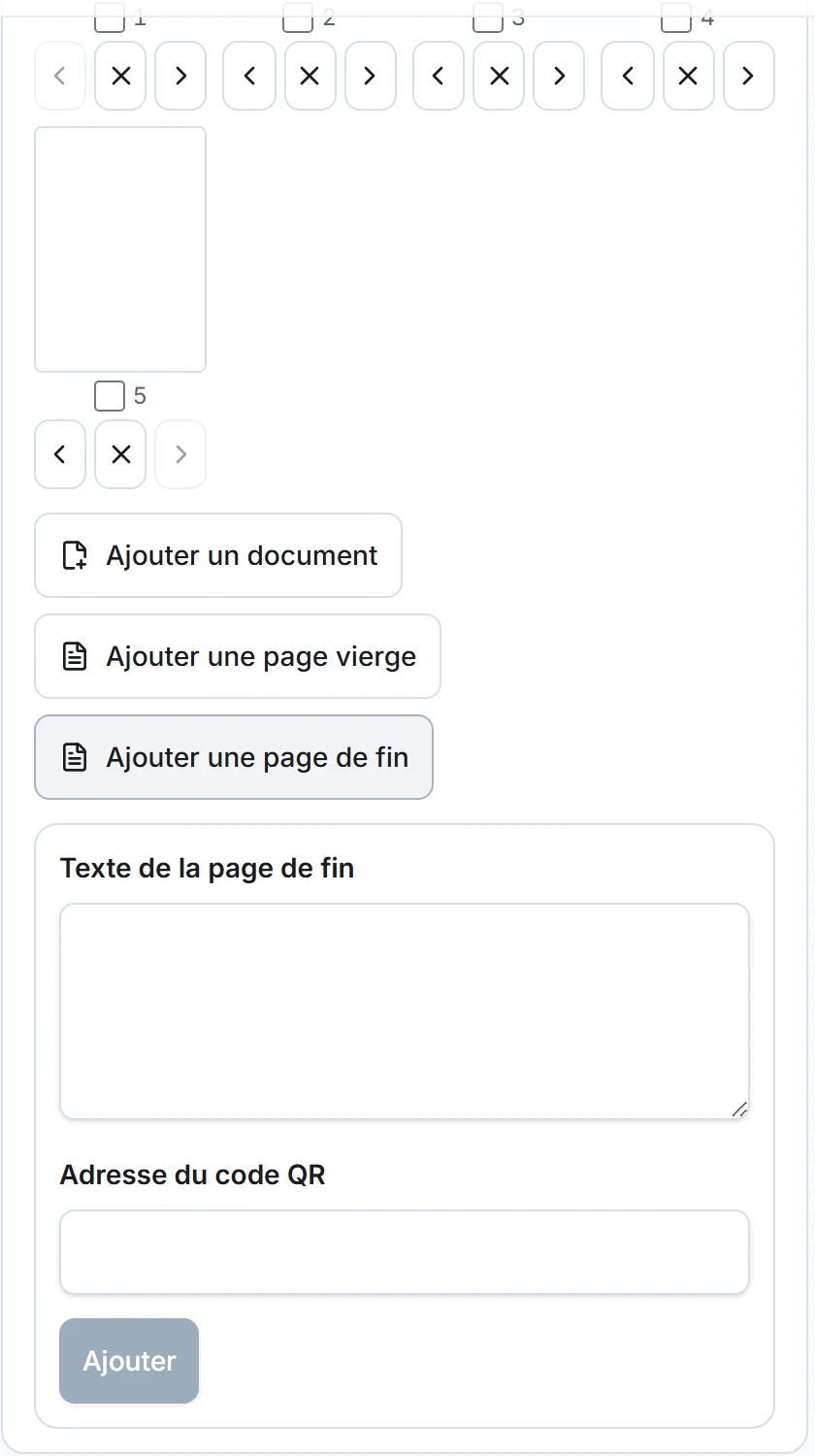
On the Create page, below the preview, the Pages and cover section shows every page as a thumbnail. Under a thumbnail, one arrow moves the page toward the start, another toward the end, and a cross removes it. A page can also be dragged to its new place.
To work on several pages at once, tick them. Three buttons then appear: Move toward the start, Move toward the end and Remove the selection. A page removed by mistake comes back with Restore removed pages. A flipbook always keeps at least one page.
Adding what is missing
Three buttons add pages after the existing ones.
- Add a document places the pages of a second file after the first ones. A report and its appendices end up in a single flipbook.
- Add a blank page creates a white page in the proportions of the document, useful to separate two parts or to even out a page count.
- Add an end page builds a last page with a text of your choice and a QR code that leads to the address you give.
The cover is added by ticking Add a cover. You give a title, an author or subtitle, and a color. The mode of the flipbook can be changed until the export, without touching the content of the pages.
Describing a page
When a single page is ticked, a Page description field appears. This text, 500 characters at most, is read by screen readers. It goes with the flipbook in the reader, in an HTML export and in an .ostibook project.
It matters most for pages made of an image, such as a scan, a photograph or a plan, which have no text to read. The Frequently asked questions describe the rest of the reader’s accessibility.
Going back a step
The Undo the change and Redo the change buttons follow changes to pages and cover. On the keyboard, Ctrl and Z undo the last step, Ctrl and Y redo it. The links and notes you have placed stay attached to their pages when those move.
These edits apply to whole pages. The content of a page cannot be changed in Ostibook. To correct a text, go back to the original document and import it again.