Read a flipbook with a keyboard, aloud or with a screen reader
Published on 3 min read
A flipbook is turned with the mouse or a finger, but the reader can also be run entirely from the keyboard, read aloud, and announced to screen readers. Here is what each control does, on the site and in an exported flipbook.
Turning pages without a mouse
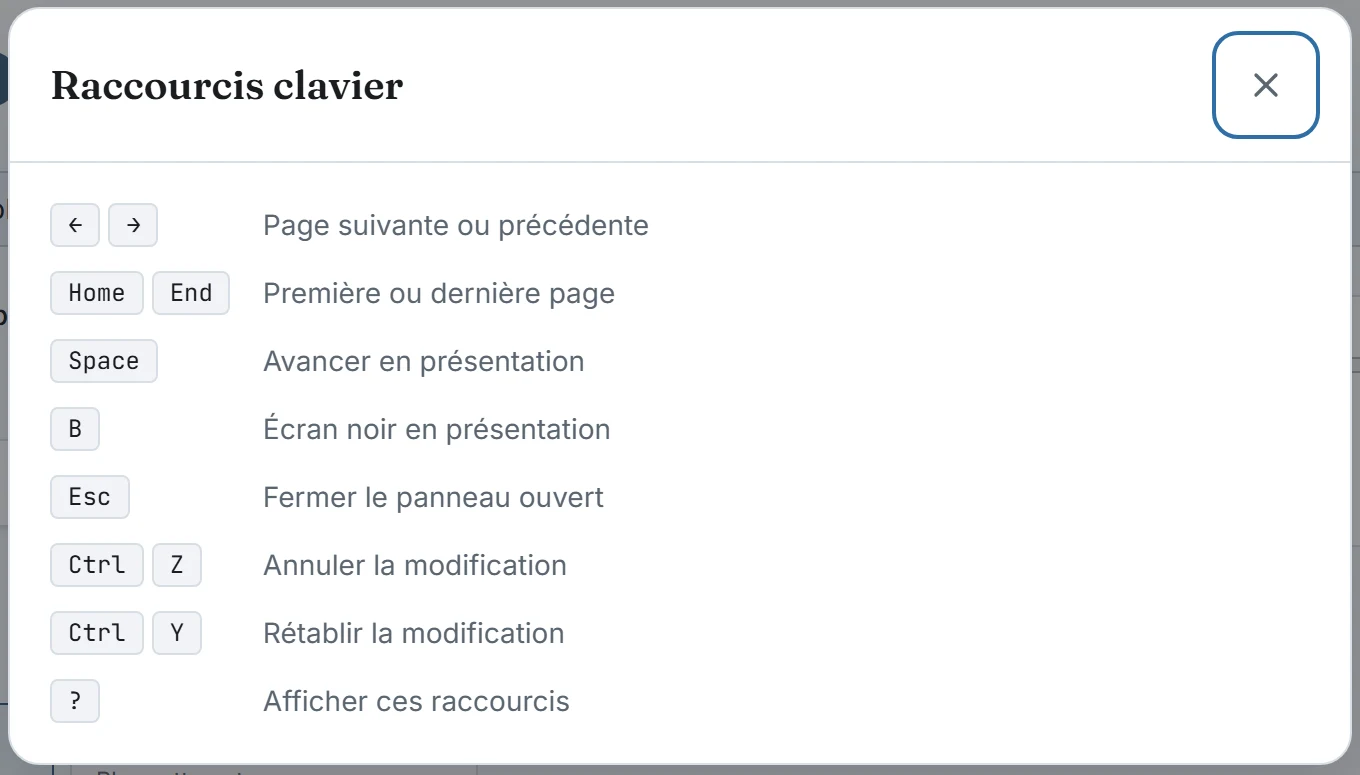
The left and right arrows turn the page, and so do the up and down arrows and the Page Up and Page Down keys. Home goes to the first page and End to the last. In a flipbook read from right to left, the two horizontal arrows swap to follow the direction of the book.
Esc closes the open panel, such as search or the table of contents, and leaves presentation mode. In that mode, the space bar moves forward one page and the B key blanks the screen. On the site, the ? key shows the list of these shortcuts.
Finding your way in the document
Every button of the reader has a name that screen readers announce: Previous, Next, Full screen, Presentation mode and, on the site, Zoom in and Zoom out. A visible outline surrounds the control selected with the keyboard. On the site, the page number, for example Page 3 of 20, is announced at each change without interrupting what is being read.
The slider that moves through the document is named Go to page, and on the site each thumbnail has the same name with its number. The reading area is announced in the language of the page, on the site as in an export.
What a screen reader reads
When the original document contains text, that text goes with the pages. A page made of an image, such as a scan, has none, and a description you give it fills that gap. The field is in the Pages and cover section of the Create page, and it travels with the exported flipbook.
On the site, the Clean reading mode button puts the pages one under the other, each with its text as ordinary text that you can enlarge, copy or read with a screen reader. An exported flipbook does not offer this view.
Reading aloud
The Read aloud button reads the pages on display, then turns the page and carries on to the end of the document. If you turn the page by hand while it reads, it resumes on the new page. Stopping is immediate.
Only the voices installed on your device are used, because some browser voices send the text to a server, which Ostibook does not offer. Without an installed voice, or for a document that has no text, the feature does not appear. The Frequently asked questions give the same explanation.
Less animation
The reader reads your system’s setting for reduced motion and takes it into account when turning pages. In the Options of the Create page, the animation speed can also be set, from 0.2 to 1 second.